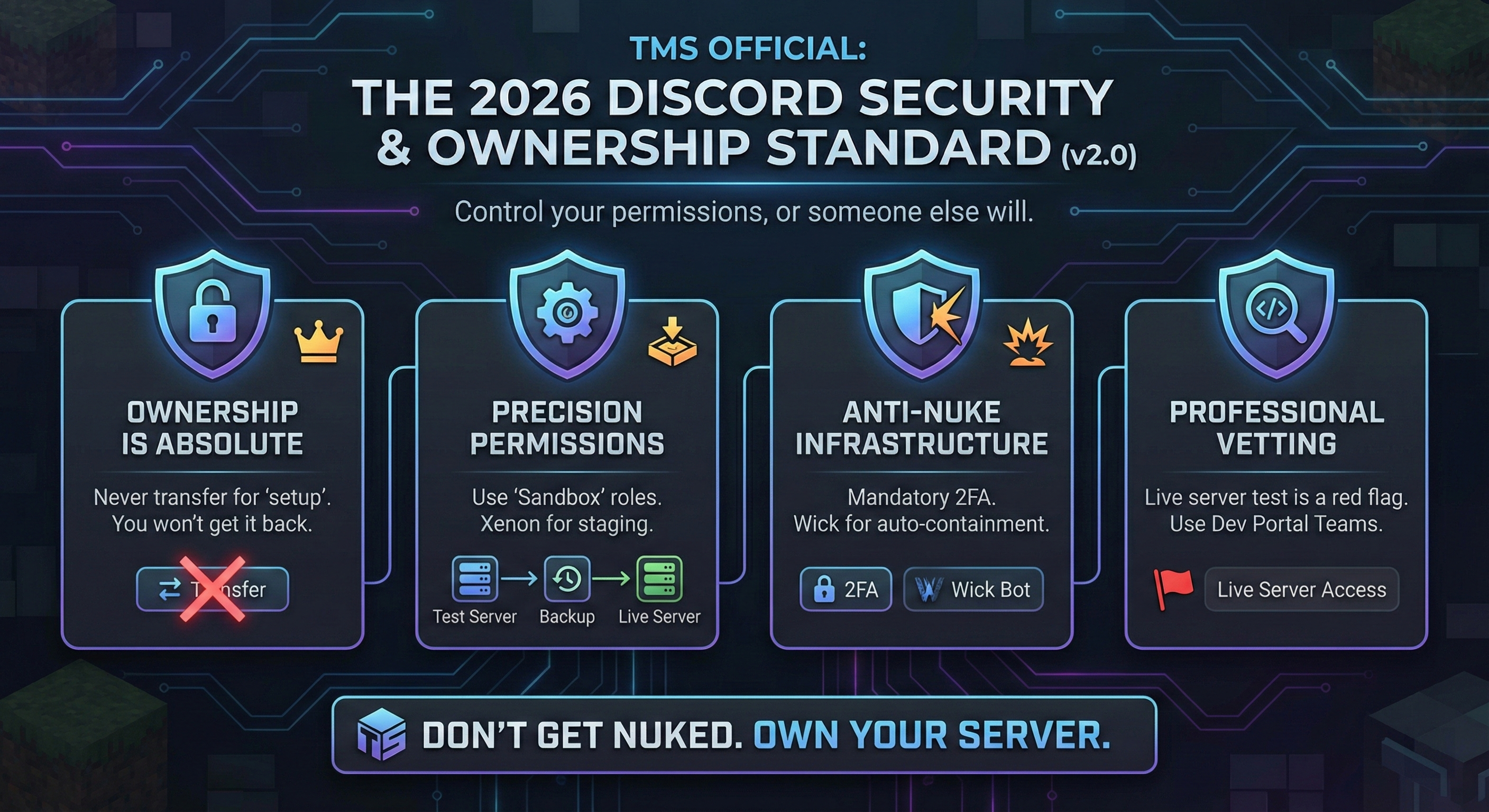
The 2026 Discord Security & Ownership Standard (v2.0)

By askray. in Official Guides
· 48 views
"Control your permissions, or someone else will."
As the TMS Team, we prioritize server integrity. This document is the definitive standard for Minecraft community owners. If you ignore these protocols, you are voluntarily accepting the risk of a total community nuke.
I. The Fundamental Commandments
Ownership is Absolute: Never transfer Server Ownership for “setup.” If you transfer it willingly, you are unlikely to recover it unless the new owner cooperates. Discord’s ownership transfer process is for specific eligibility cases (like owner inactivity), not “I got tricked.”
Token Security: Your bot token is a root password. It allows anyone to control your bot and perform any action the bot’s role allows. Treat it like your bank password.
The "Zero-Admin" Policy: Never grant the
Administratorpermission. A professional setup never requires it.DM "Verification" Scams: Ignore any request to "Verify" via a link or QR code in DMs. These are token-loggers designed to hijack your account.
II. Precision Permissions: The Developer Role
When hiring a developer, do not give them a "Manager" role. Create a custom "Sandbox" role placed below your Moderator roles in the hierarchy.
🛡️ Use These Scopes Judiciously:
Manage Channels: Required for structure and category setup.
Manage Webhooks (High Risk): Only grant this if they are actively wiring DiscordSRV or external integrations. Webhooks can be used to impersonate staff for phishing/spam.
Manage Expressions (Optional): Only if they need to upload or manage emojis, stickers, or soundboard assets.
View Audit Log: Essential for troubleshooting.
Manage Roles (Extreme Risk): Default to OFF. Only grant if absolutely necessary for bot-role linking. Remember: they can only edit roles placed below their own.
III. The Infrastructure Tool: Xenon Bot
Stop giving devs access to your live server. Use a staging environment.
Tool Link: Xenon.bot
Staging Server: Build the layout in a blank server where the dev has full perms.
Backup & Transfer: Use Xenon to create a backup of the staging server and load it into your live server.
Result: You get a professional structure without ever exposing your members or live environment to a stranger.
IV. Defensive Infrastructure
Mandatory 2FA: Enable "Require 2FA for Moderation" in Safety Setup. This is your primary defense against staff account hijackings.
Anti-Nuke Bots: Utilize bots like Wick. These bots detect mass deletions, kicks, and role chaos, then automatically lock down the server and contain the damage through predefined thresholds.
Security Actions: Use the native Discord Security Actions (Server Dropdown) to freeze the server in an emergency. Note: This is a temporary lockdown (typically capped at 24 hours) to give you time to audit and recover.
V. Professional Vetting Protocol
The Live Server Test: If a dev demands access to your live server instead of working in a staging environment, deny the request.
The Dev Portal Team: If they are coding a custom bot, you should own the application. Add them to your "Team" in the Discord Developer Portal. You retain the "Kill Switch."
Red Flags: Defensive behavior when questioned about security, asking for "Ownership" for "API reasons," or demanding the Bot Token.
Recommended Comments